
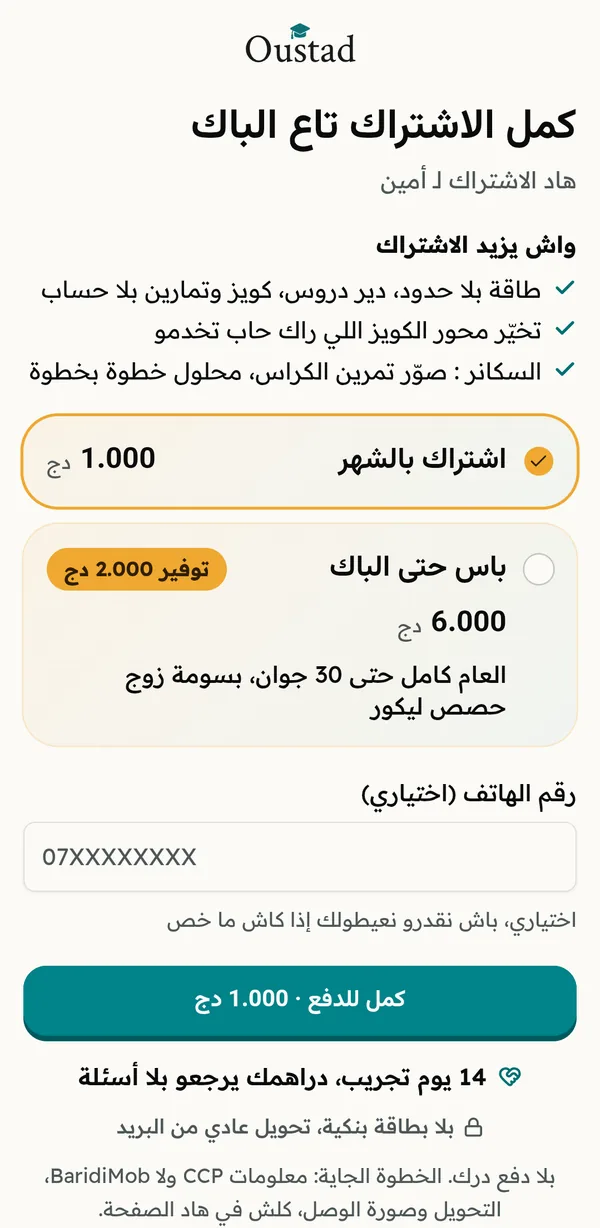
1,000 DZD
per month Back to the payment page
How much the subscription costs, and how to pay
Two plans and five steps. Send a clear receipt, your account opens right away.
How much?
6,000 DZD
once, valid until 30 June 2027 You pay the price of 6 months and it runs all the way to the BAC.The app stays free every day, and the subscription adds this:
- Unlimited energy, as many lessons, quizzes and exercises as you want
- You choose the chapter of your quiz
- The scanner: snap an exercise from your notebook, solved step by step
The price is the same whether you pay or someone else pays for you, and no card is needed. If someone else pays, pick « Someone else pays » below.
- 1
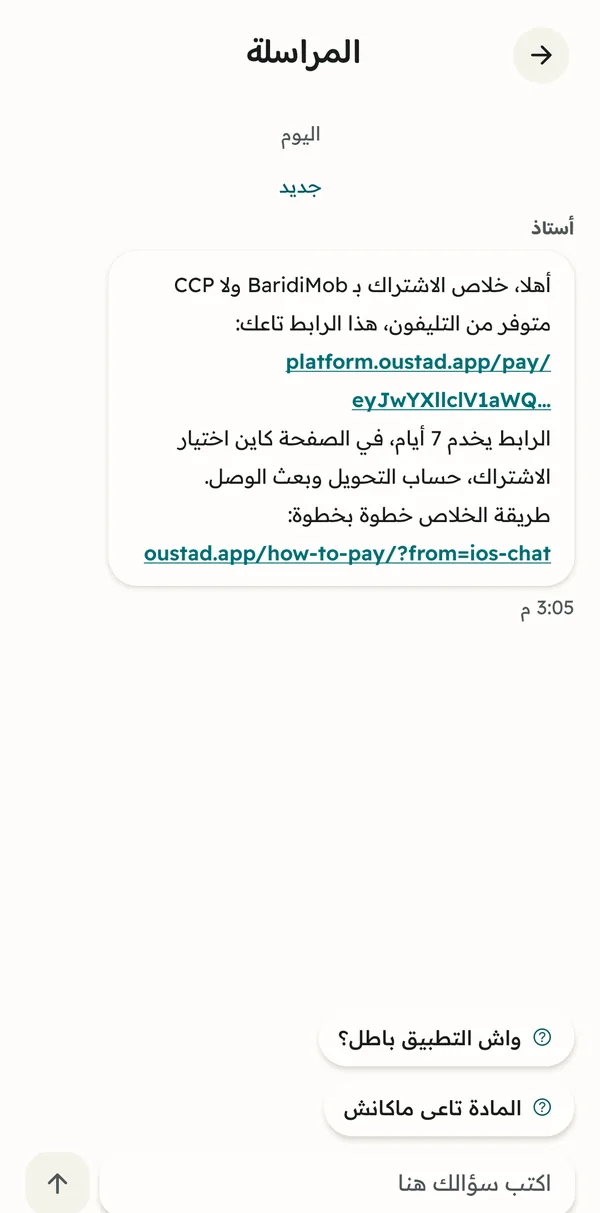
Open your link from the conversation
In the app, go to « Account » then « Message Oustad ». Our message there holds your personal payment link: tap it and the page opens in Safari. No link yet, or it has expired? Write to us in the same conversation and we send you one. From a computer, you can also pay on platform.oustad.app with the same account.
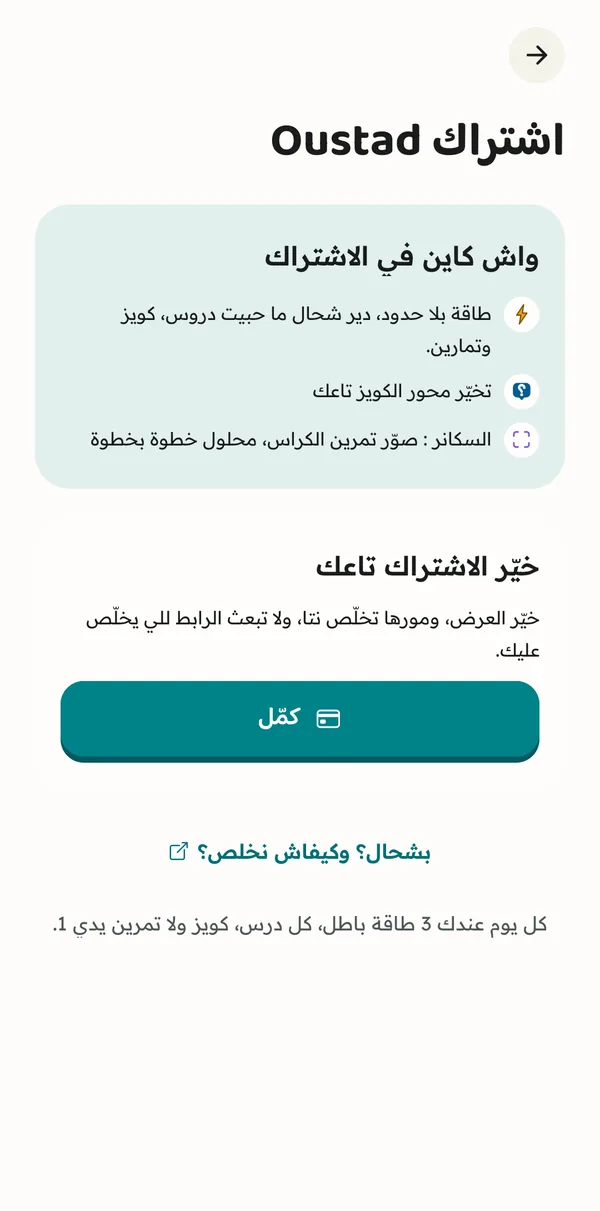
Open the subscription page in the app
Open Oustad, go to the subscription page and tap « Continue ».
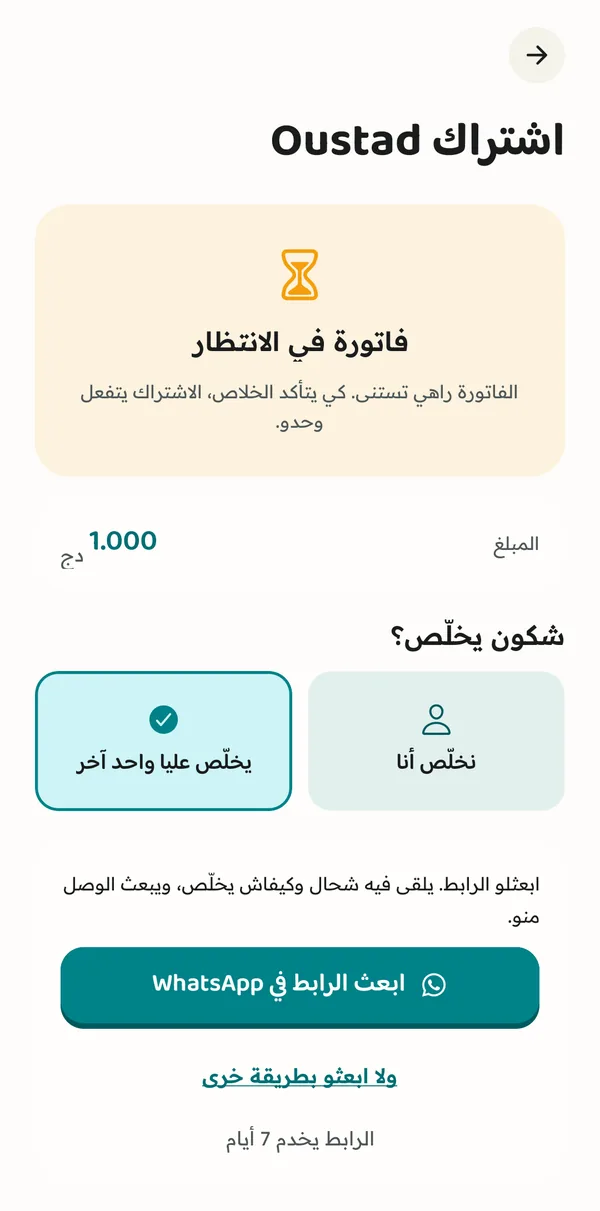
Send the link to whoever pays
On Android, tap « Continue » on the subscription page and choose the plan, then under « Who pays? » tap « Someone else pays for me » and « Back to the app to send the link ». WhatsApp opens with a message ready, with the amount and the link. On iPhone, send them the link you received in the Oustad conversation. The link works for 7 days.
- 2
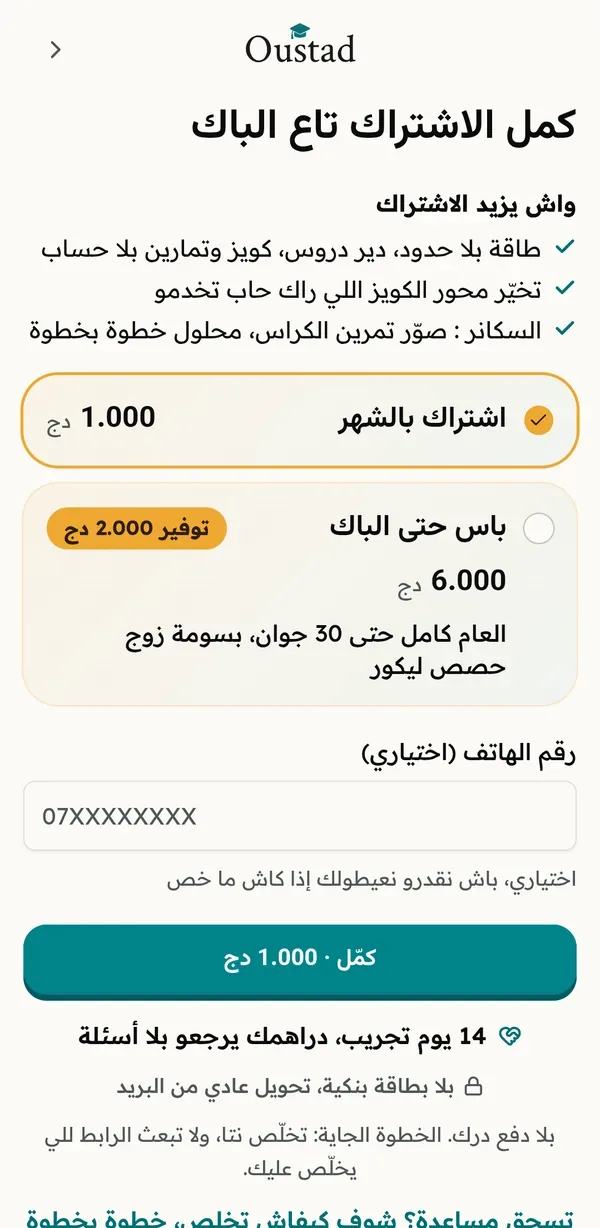
Pick your plan
On the page, choose « Monthly subscription » or « BAC Day Pass », then tap « Continue to payment ».
Pick your plan, then who pays
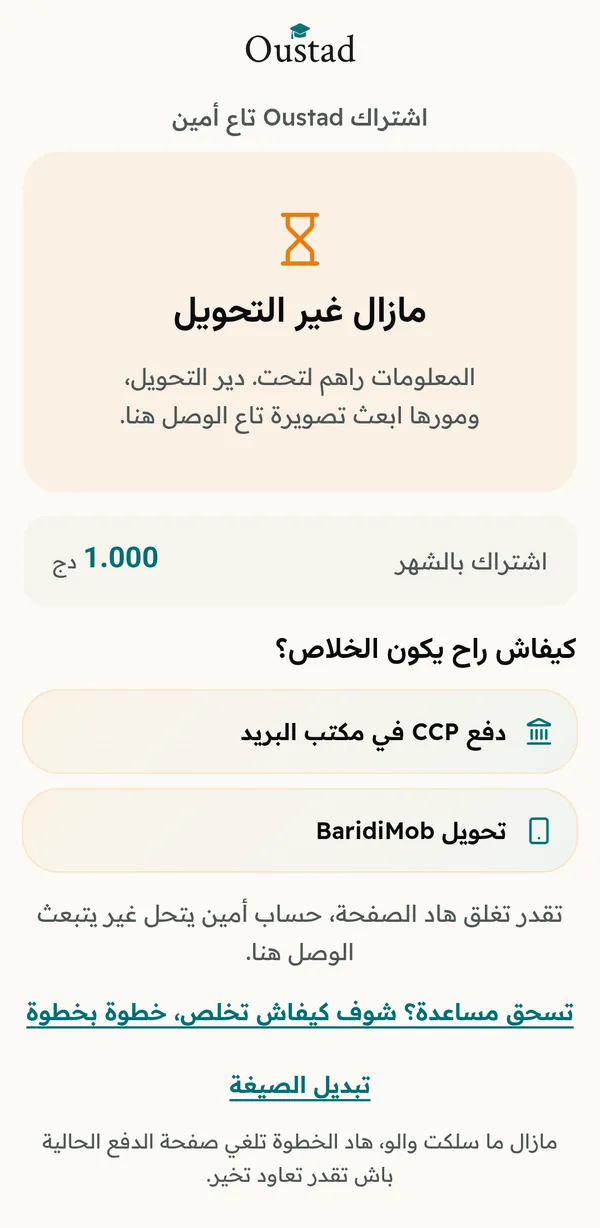
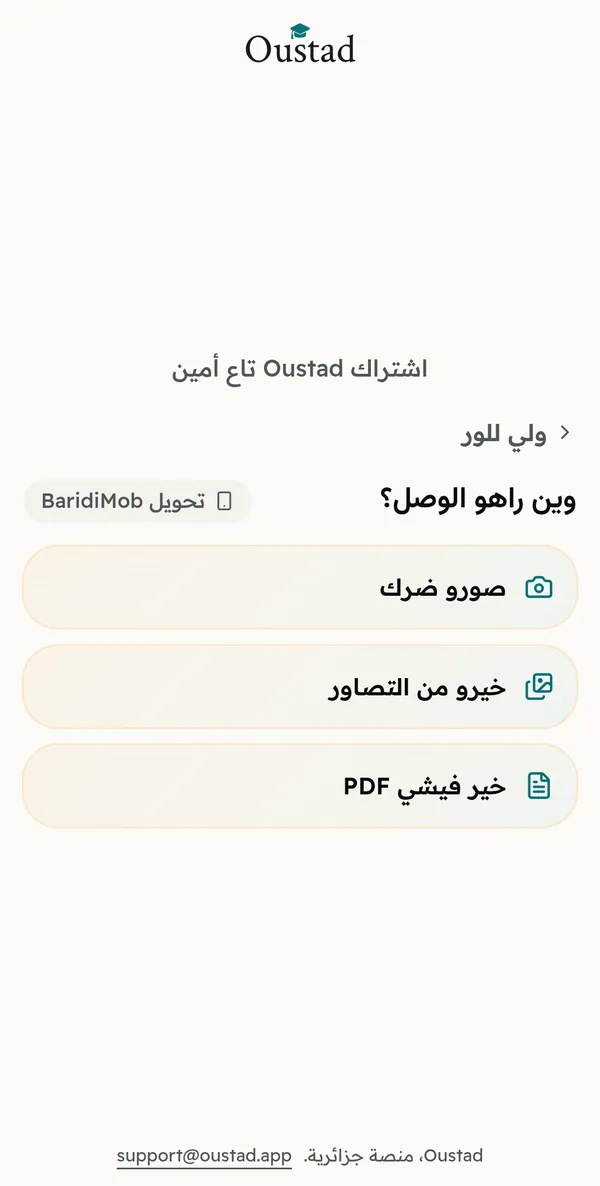
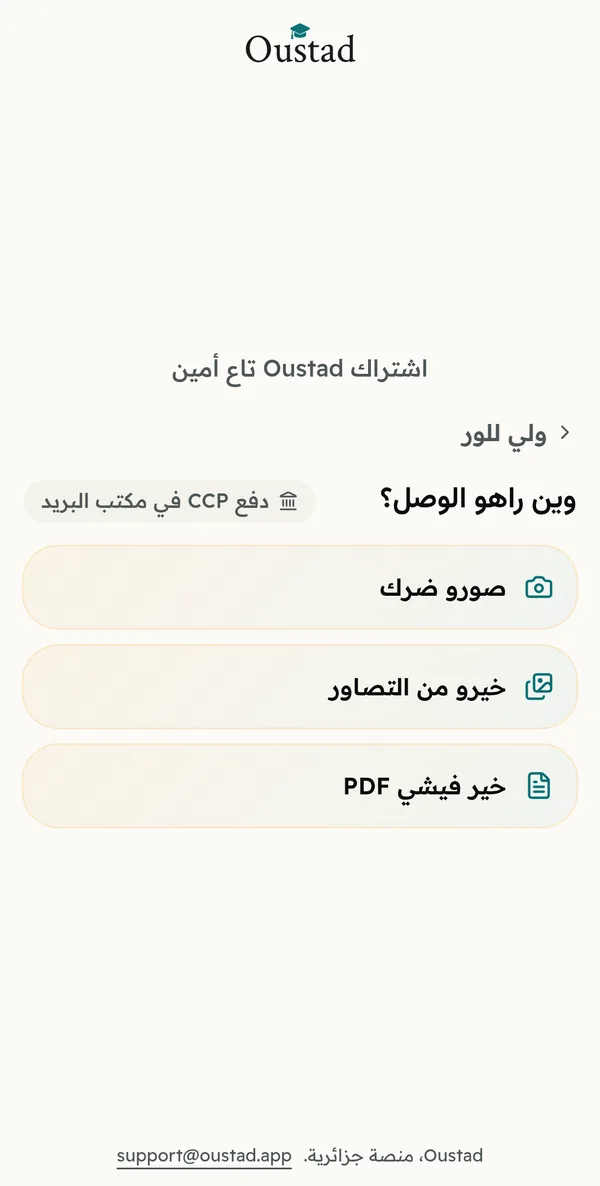
A page opens: choose the monthly plan or the pass until the BAC and tap « Continue ». Under « Who pays? », tap « I pay myself », then pick BaridiMob or CCP and tap « Continue in the app ». If someone else pays for you, tap « Someone else pays for me » instead.
They see the plan and the amount
The link opens a page with your name on it, no account needed. If you already chose the plan, it shows with its amount, and they can still change it. If not, they choose « Monthly subscription » or « BAC Day Pass », then tap « Continue to payment ».
- 3
The page shows you where to pay
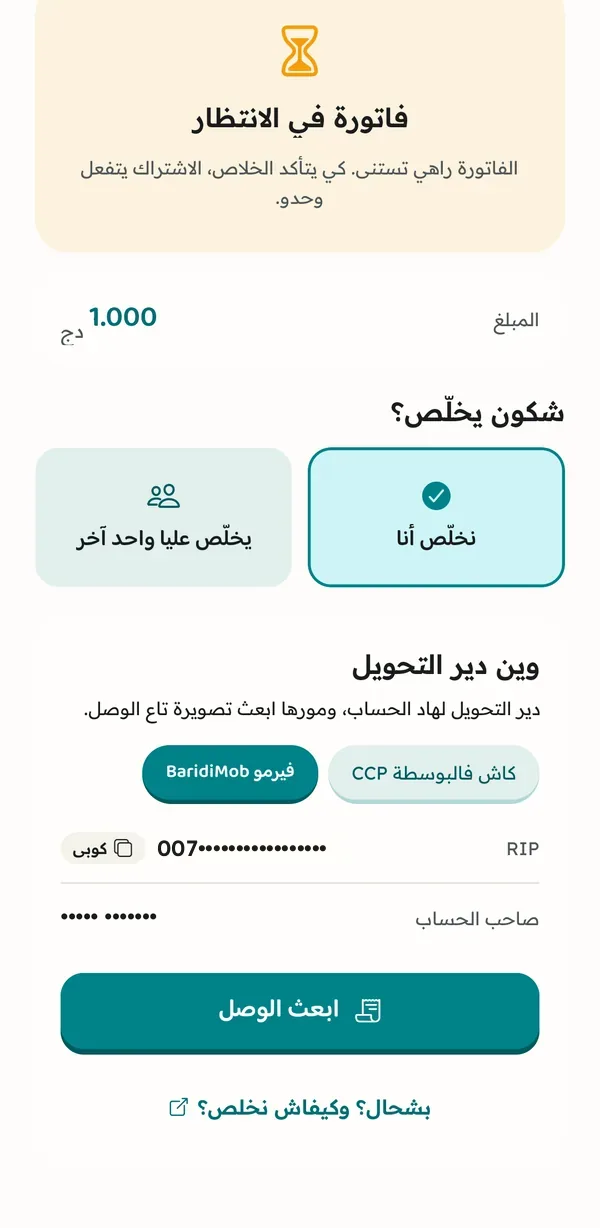
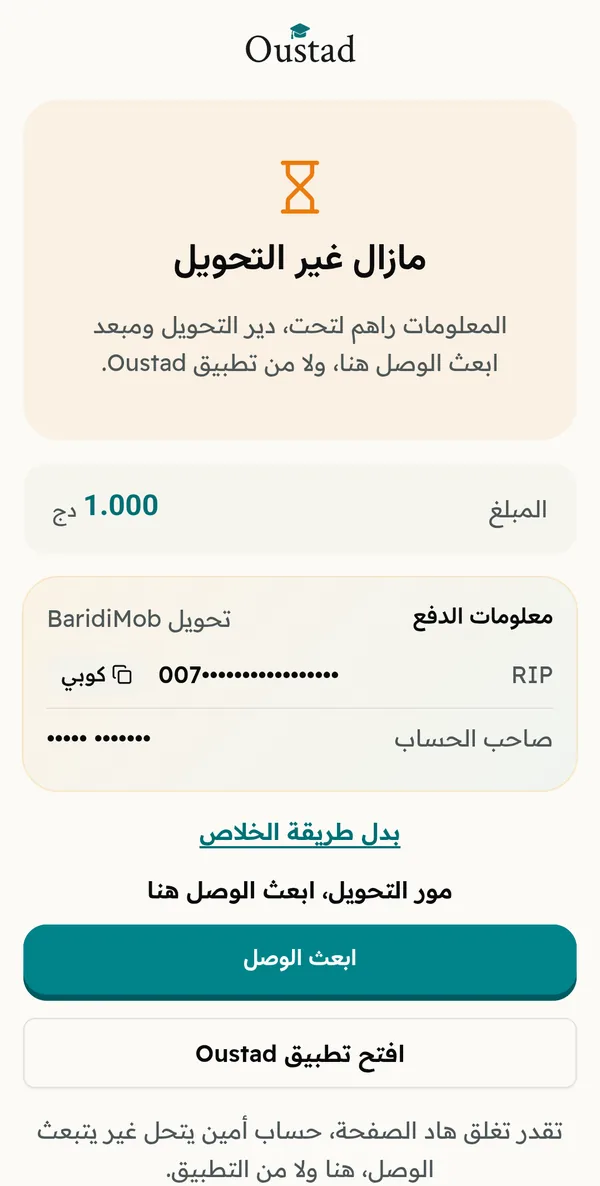
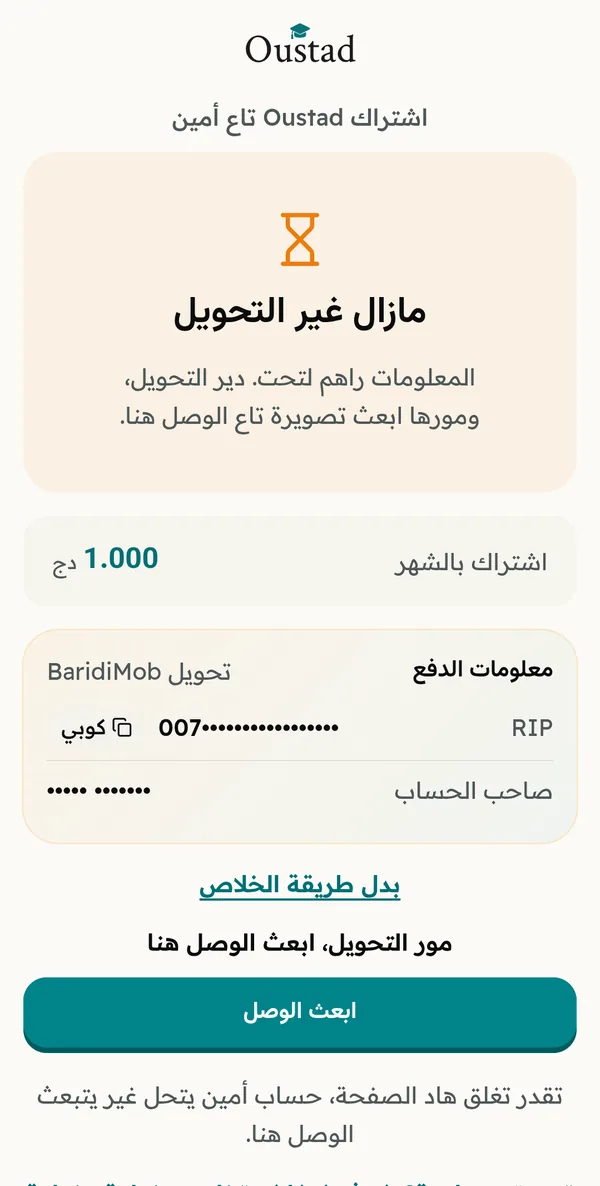
On the same page, tap « BaridiMob transfer »: the RIP appears. Tap « Copy » to copy it.
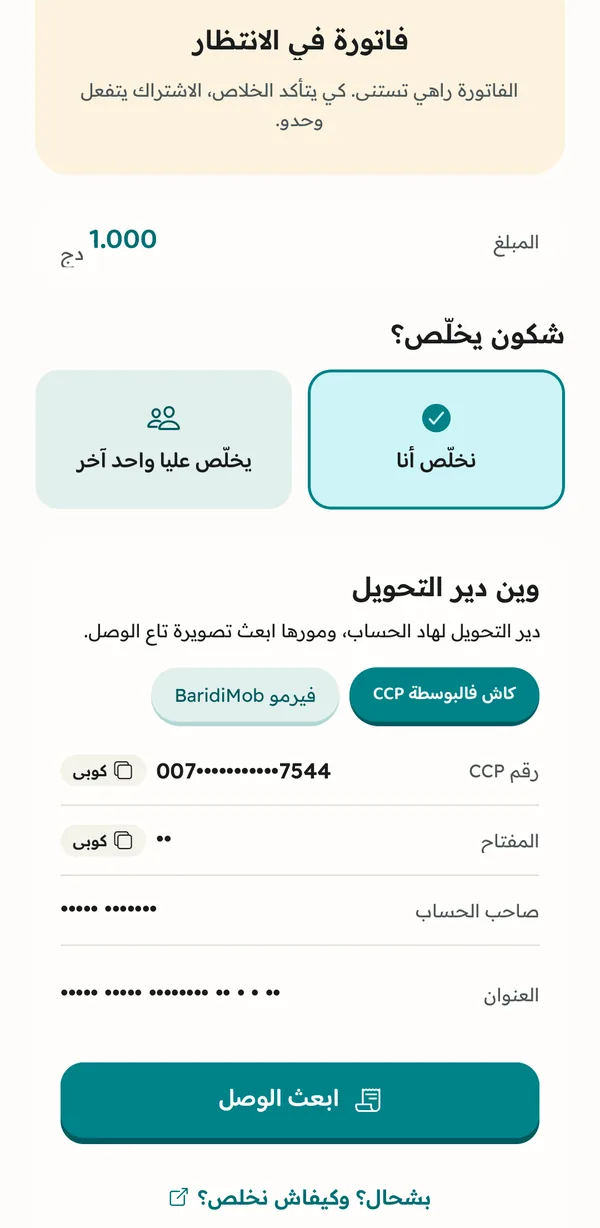
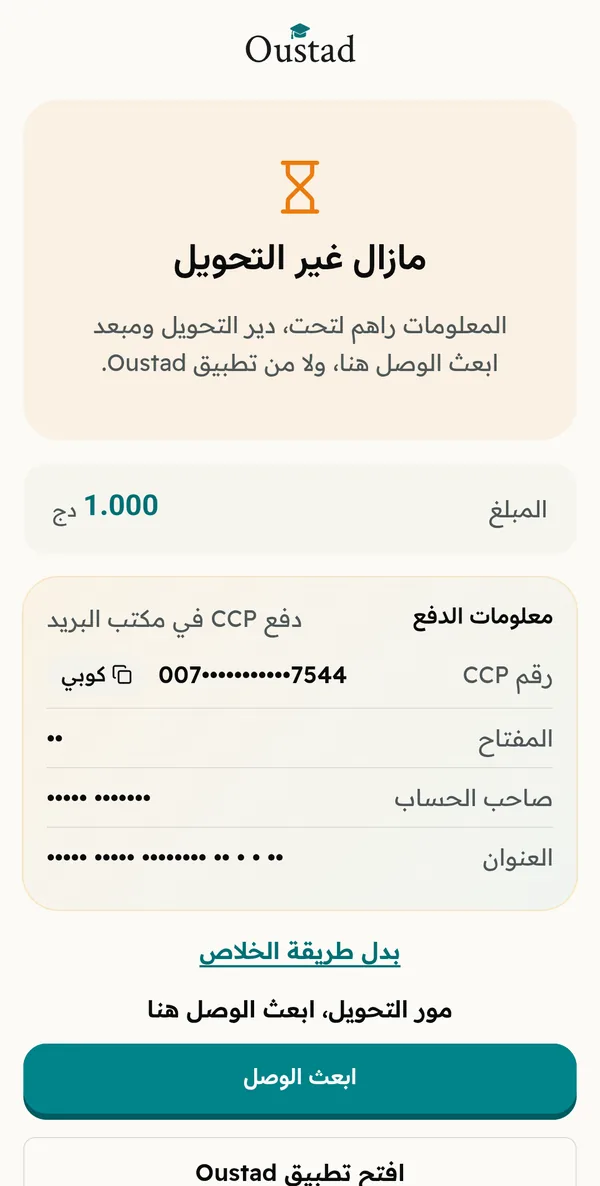
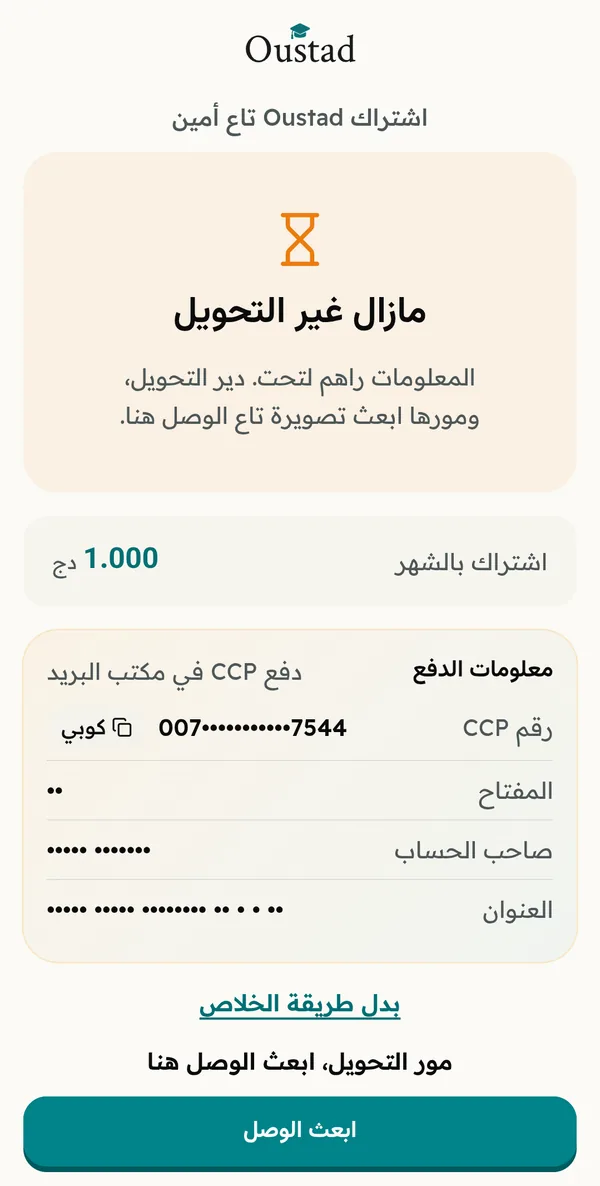
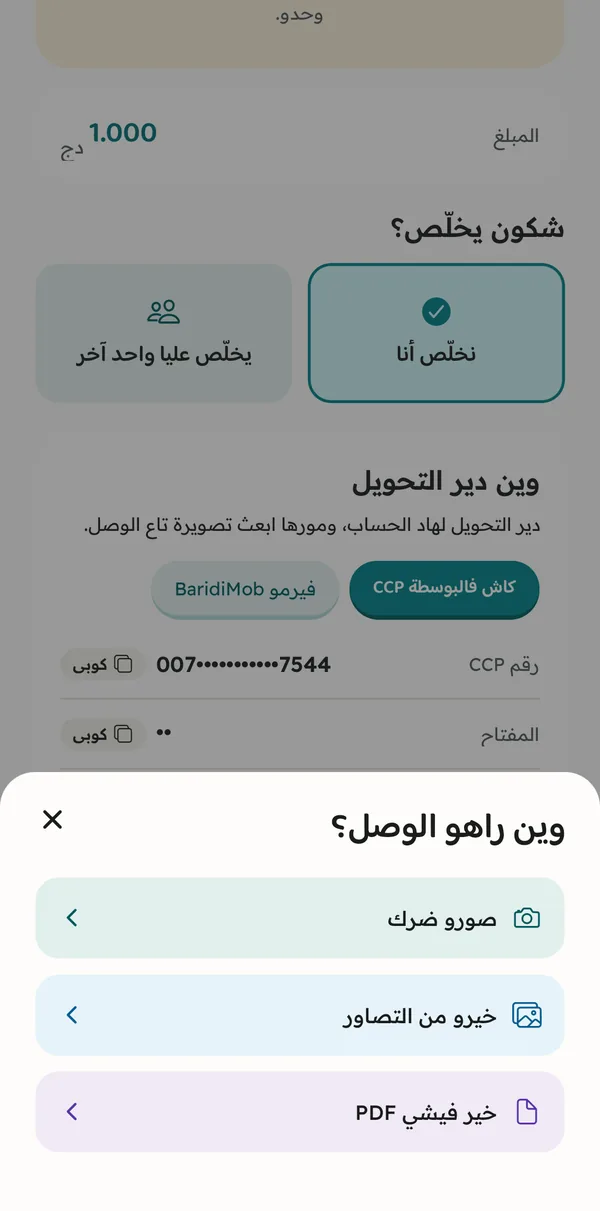
On the same page, tap « CCP at the post office » and write down the CCP number, the key and the account holder.
Keep your link: these details stay on the page for 7 days.
The app shows you where to pay
Back in the app, the subscription page shows the RIP under « BaridiMob transfer ». Tap « Copy » to copy it.
Back in the app, under « Cash at the post office », write down the CCP number, the key and the account holder.
These details stay on the subscription page of the app.
The page shows them where to pay
On the same page, « BaridiMob transfer » shows the RIP, with « Copy » to copy it.
On the same page, « CCP at the post office » shows the CCP number, the key and the account holder.
These details stay on the link page for 7 days.
- 4
Transfer the exact amount
In BaridiMob, send a transfer to the RIP for exactly the amount shown. Then download the receipt, or take a screenshot where the amount is visible.
Pay at the counter
At the post office, fill in a deposit slip with the CCP number, the key and the amount. Pay at the counter and keep the stamped receipt.
Algerie Poste
Recu de transaction «BaridiMob»
- Montant
- 6000.00
- Date de transaction:
- 14.09.2026 10:29:00
- Destinataire:
- 00799999••••••••••••
- Type d'operation:
- TRANSFER
- Identifiant de transaction:
- ••••••••••••
Baridimob
ALGERIE POSTE
Versement espèces
- N° CCP
- •••••••••• ••
- Date
- 14/09/2026
- Montant
- 6000,00 DA
- 5
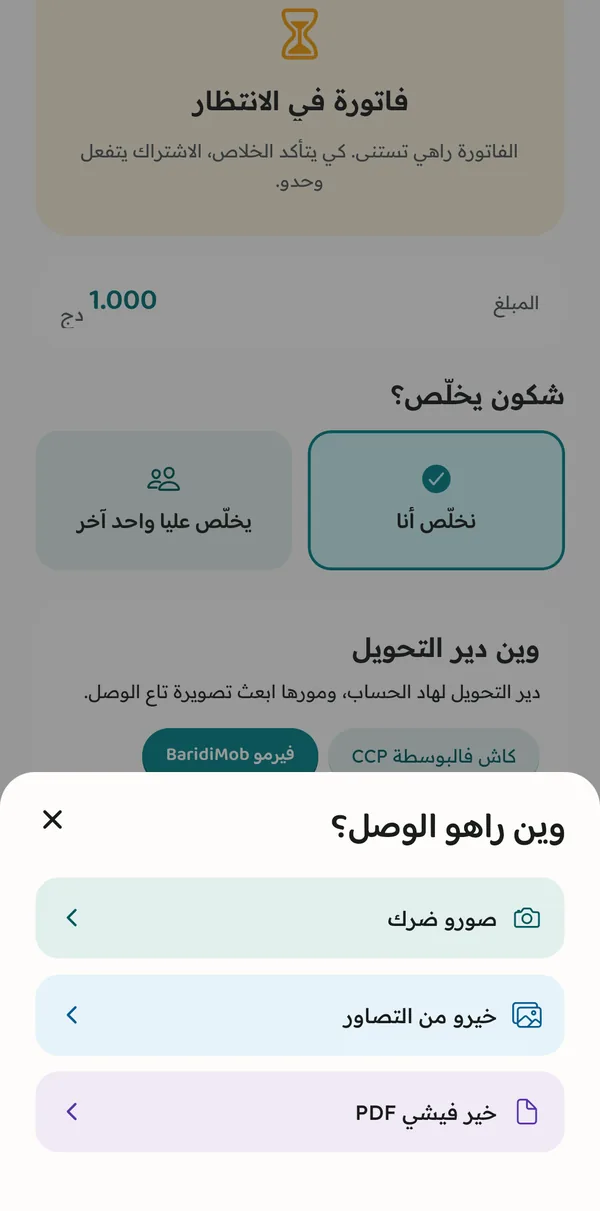
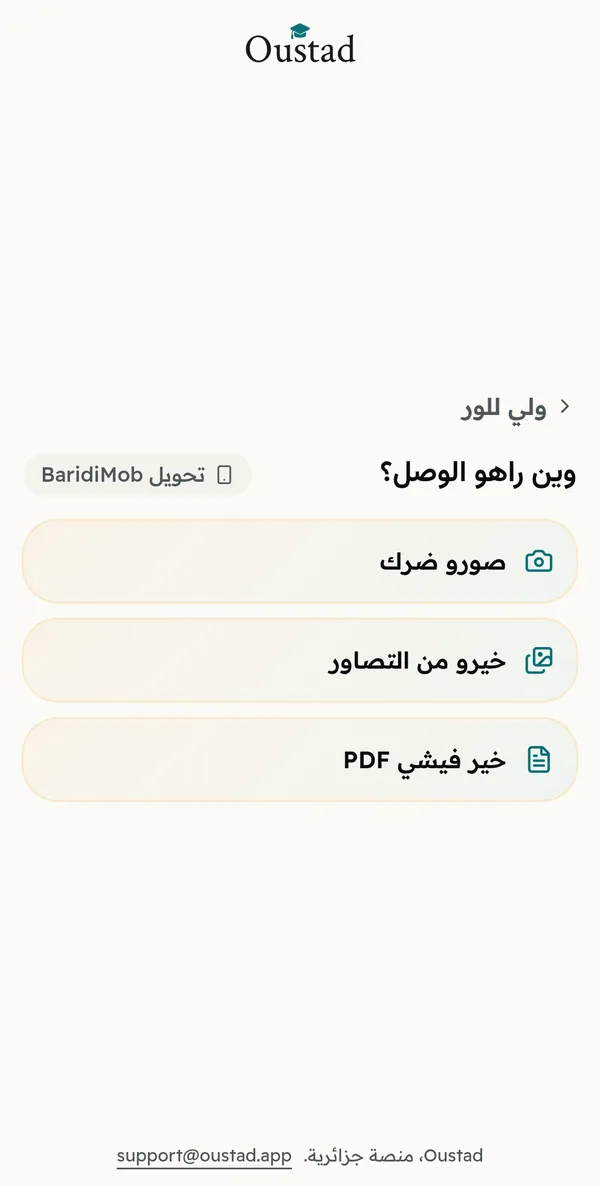
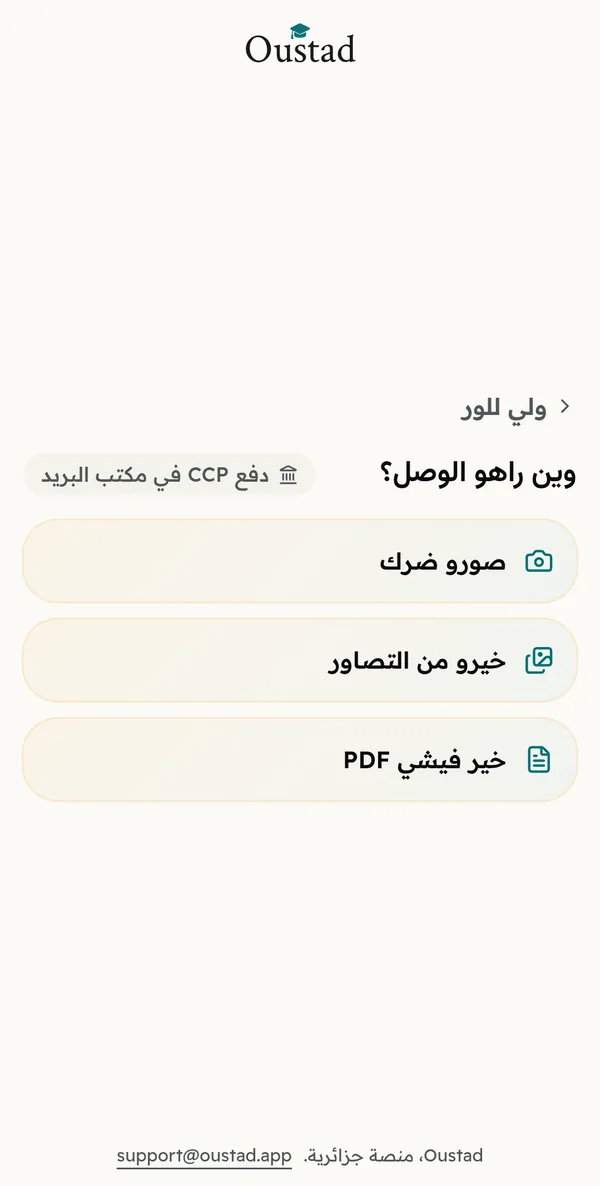
Send the receipt from the same page
After the transfer, open your link again, tap « Send the receipt » and pick the photo or the PDF of the receipt. Your account opens right away.
Send the receipt from the app
After the transfer, on the subscription page of the app, tap « Send the receipt » and pick the photo or the PDF of the receipt. Your account opens right away.
They send the receipt from the link
After the transfer, they open the link again, tap « Send the receipt » and pick the photo or the PDF of the receipt. Your account opens right away.
Your account opens right away
When the receipt is clear and shows the right amount, your account opens within a minute. Go back to the app, it’s already open.
If the receipt is hard to read, we check it by hand and open your account once it’s confirmed.
The account opens right away
When the receipt is clear and shows the right amount, the student’s account opens within a minute. There is nothing else to do.
If the receipt is hard to read, we check it by hand and open the account once it’s confirmed.
 Your account is open
 14 days to change your mind
Your first payment is refundable within 14 days of your paid access opening, to the account that paid. Write to us in the Oustad conversation and we send you the refund button there. Once refunded, the account is closed for good.
No bank card, a plain transfer from the post office
The receipt that opens your account
Algerie Poste
Recu de transaction «BaridiMob»
- Montant
- 6000.00
- Date de transaction:
- 14.09.2026 10:29:00
- Destinataire:
- 00799999••••••••••••
- Type d'operation:
- TRANSFER
- Identifiant de transaction:
- ••••••••••••
Baridimob
ALGERIE POSTE
Versement espèces
- N° CCP
- •••••••••• ••
- Date
- 14/09/2026
- Montant
- 6000,00 DA
ALGERIE POSTE
Versement espèces
- N° CCP
- •••••••••• ••
- Date
- 14/09/2026
- Montant
- 6000,00 DA
- The exact amount of your subscription.
- A receipt from the way you chose to pay.
- A recent payment, made for this subscription.
If you’re stuck
I paid and my account is still closed
If you sent the receipt, the account opens on its own once it is checked, or after a manual review. If you have not sent it yet, send it from the link page on iPhone or when someone paid for you, or from the subscription page of the app on Android. If it is still stuck, write to us in the app conversation.
My receipt was refused
Send a new receipt where the amount shows, the BaridiMob receipt or the stamped post office receipt, from the subscription page of the app or from the same link. After a refused receipt, we confirm the next one by hand before opening the account.
I lost the link
On iPhone, your link is in the Oustad conversation, and if it has expired, write to us there for a new one. On Android, open the subscription page again and tap « Someone else pays for me » to send a new link. If you sent it to someone, look in that WhatsApp chat. A new link opens the same payment, you won’t pay twice. If someone sent you a link that has expired, ask them for a new one.
Someone else is paying for me
Send them the link. They pay from their phone, without an account, and only see your name. As soon as they send the receipt, your account opens.
Still stuck? Write to us at support@oustad.app or from the support in the app.